Enable Beyond Identity Safari Extension on iOS Devices
Enable Beyond Identity Safari Extension on iOS Devices (iOS 26)
You can enable the Beyond Identity Safari Extension to streamline authentication on iPhones and iPads.
Important
- The Safari extension only supports web application logins accessed via the Safari browser.
- Due to Apple restrictions, extensions do not work in web browsers embedded inside apps.
iOS 26 Configuration Steps
-
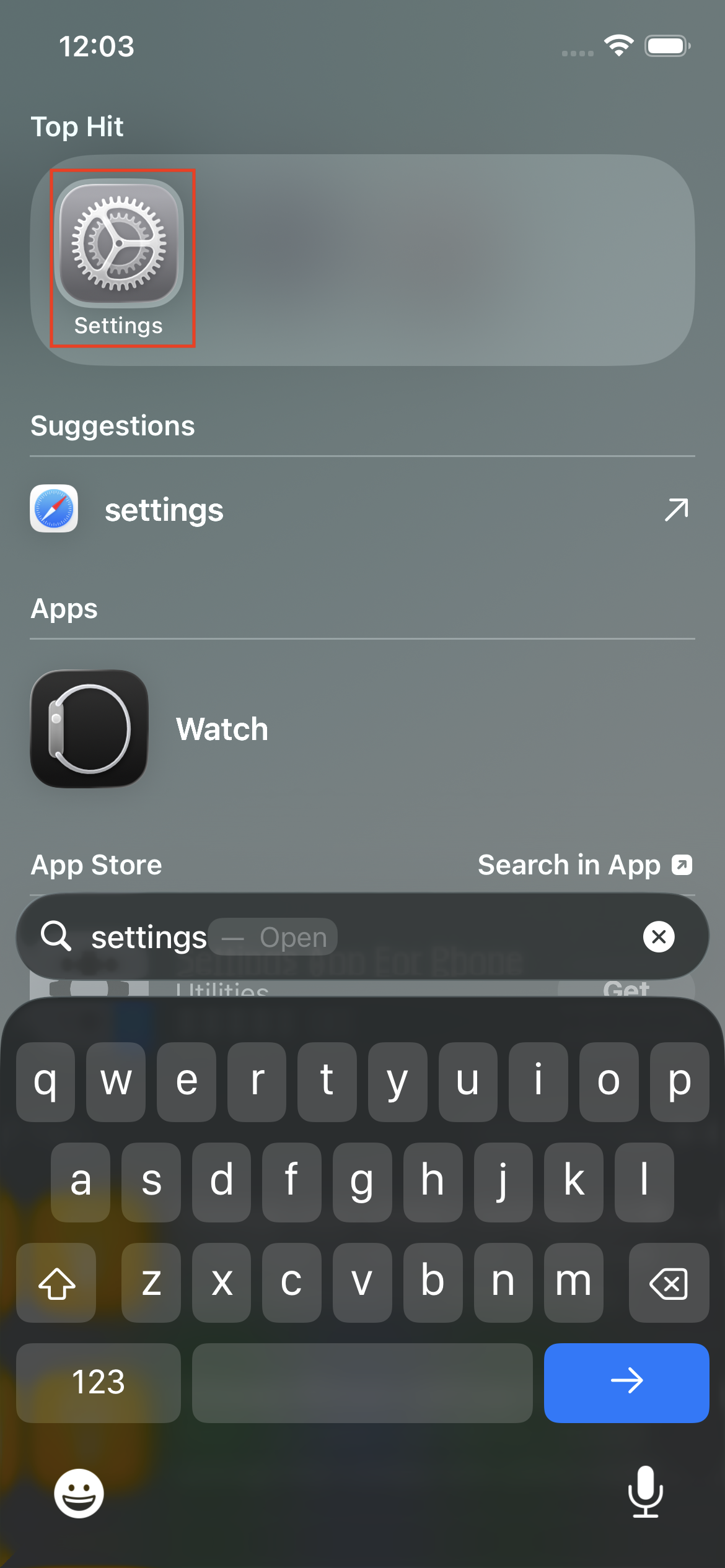
On your iOS device, locate and tap Settings.
-
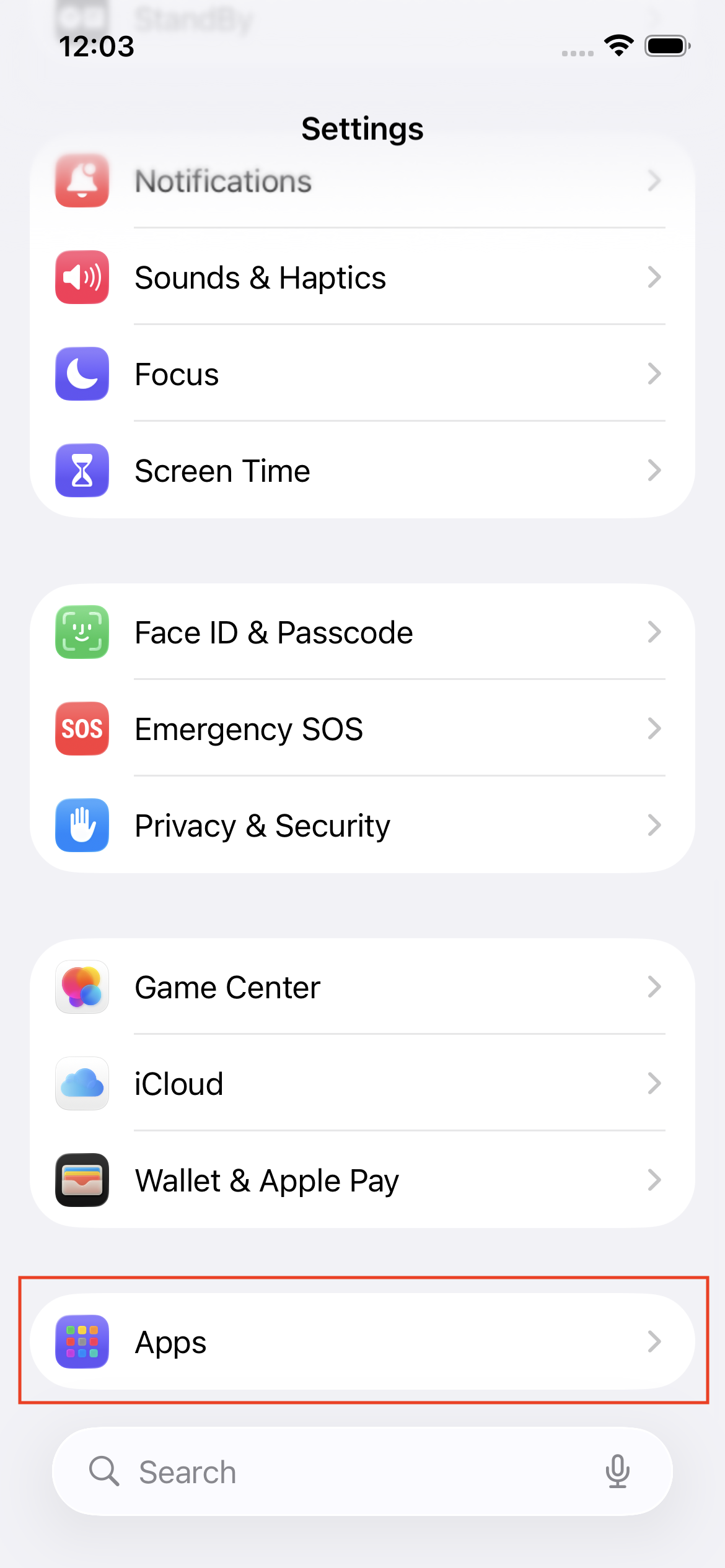
Scroll down and tap Apps.
-
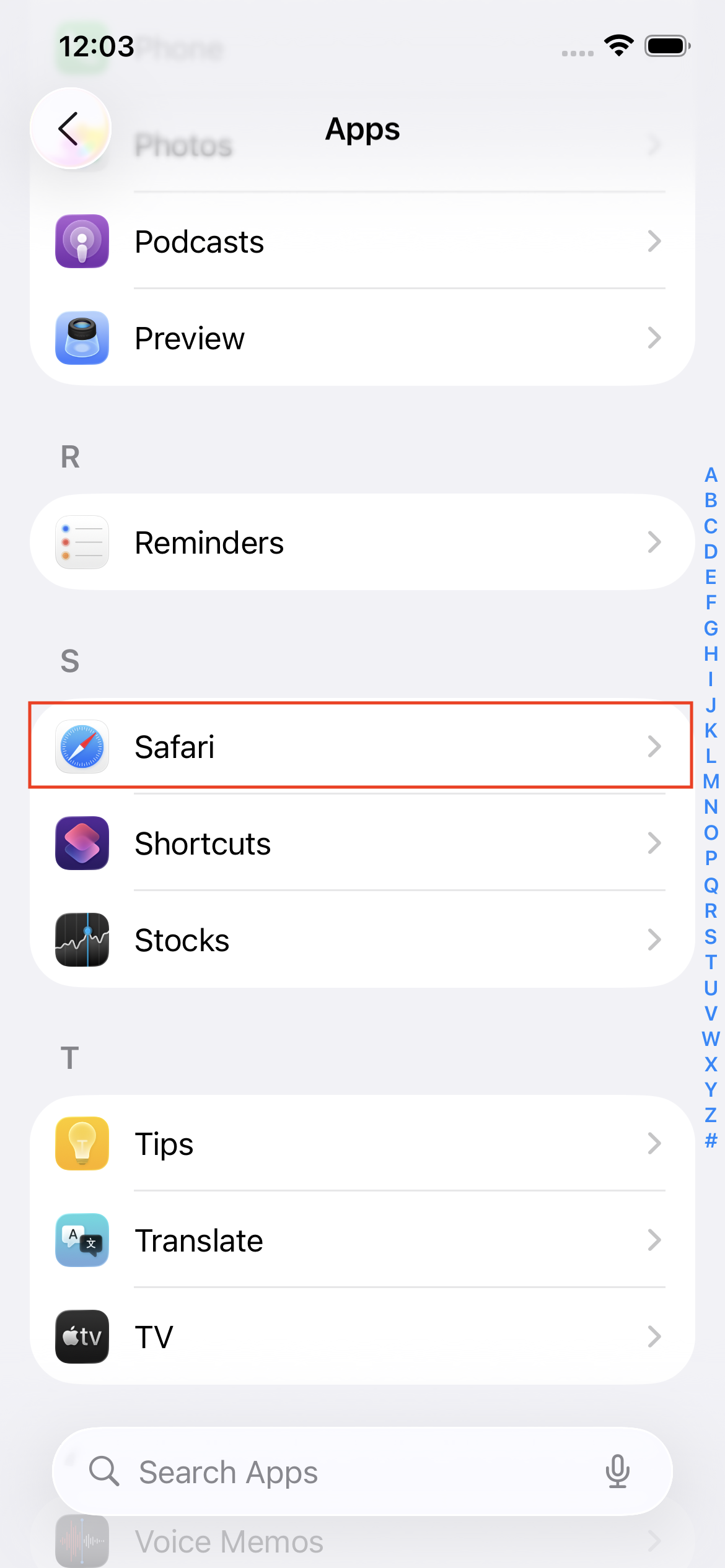
From the list of apps, tap Safari.
-
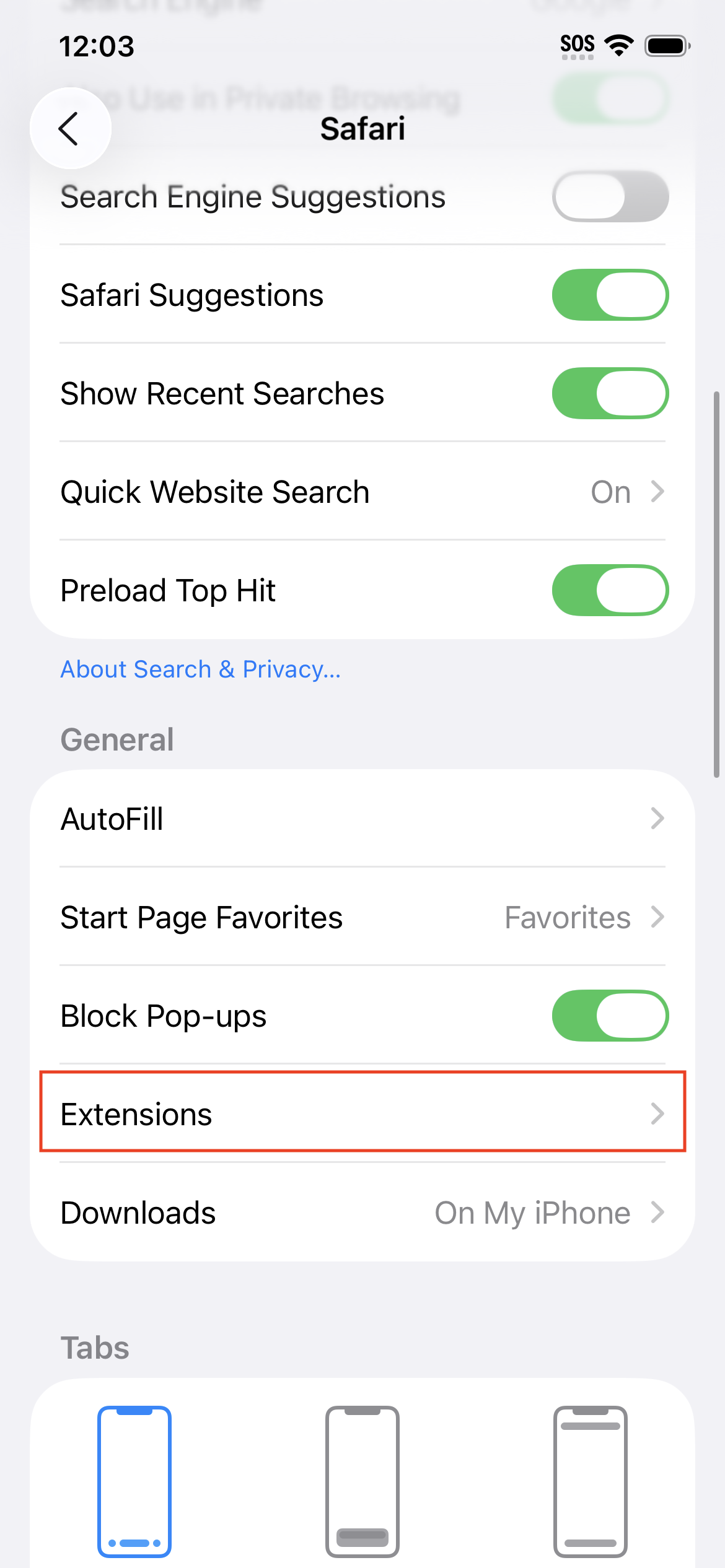
Tap Extensions.
-
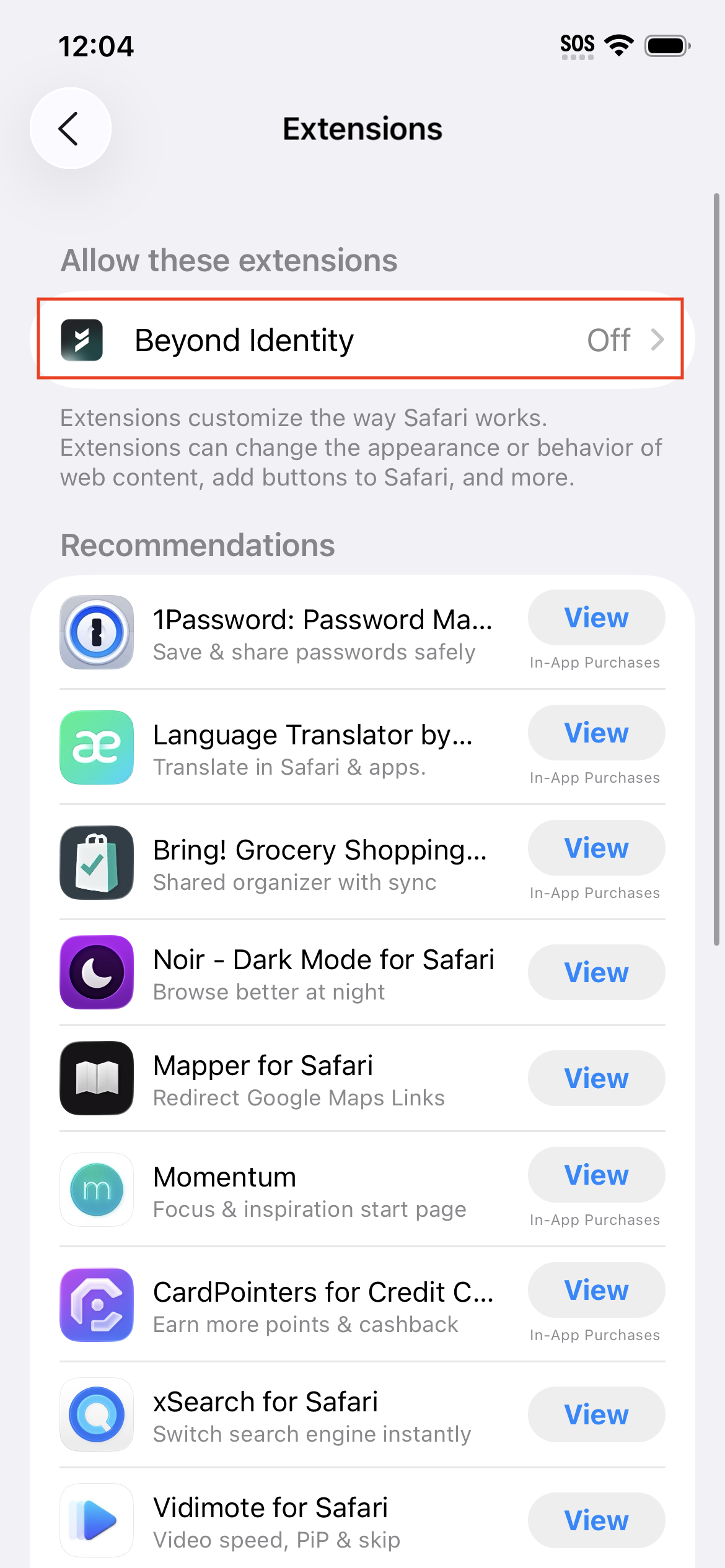
Under Safari extensions, tap Beyond Identity.
-
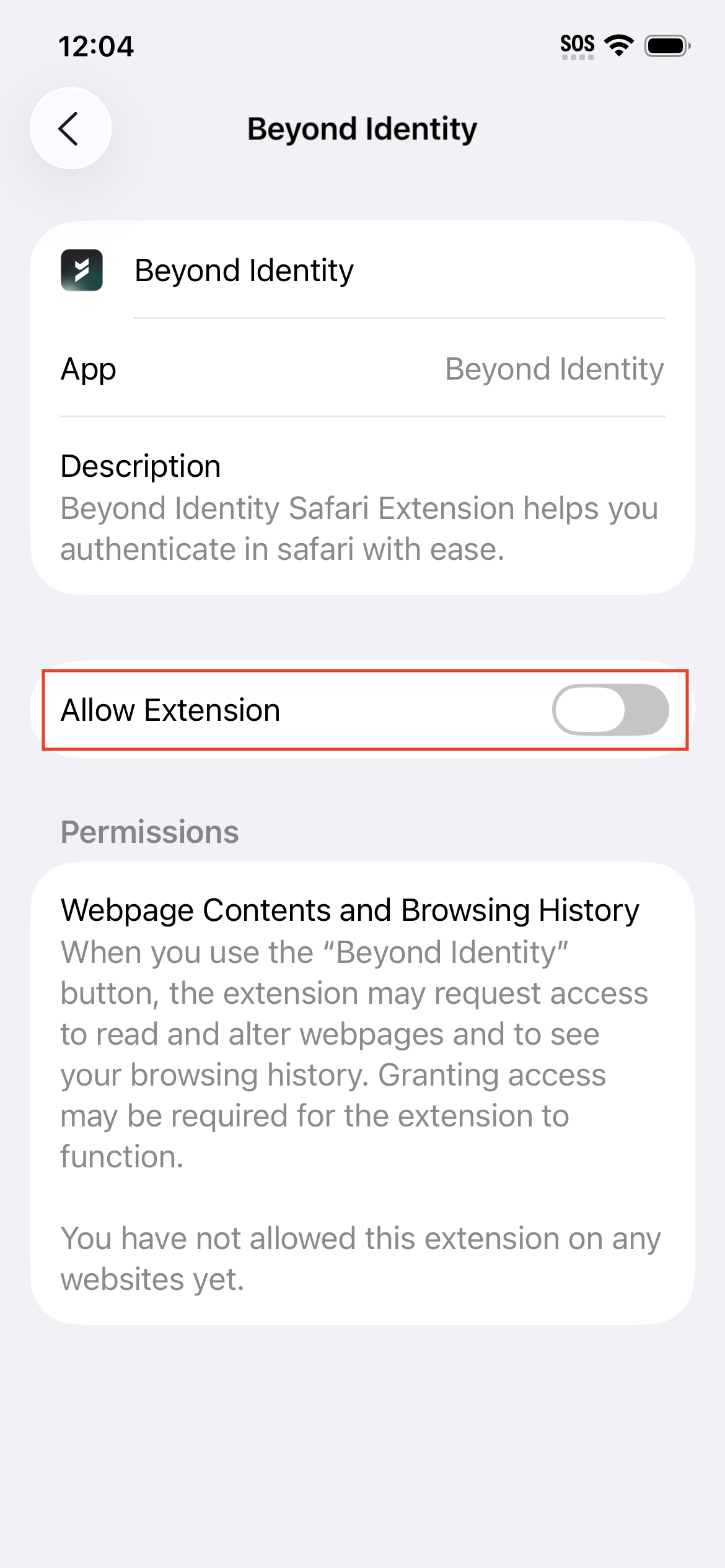
Toggle Allow Extension to ON.
-
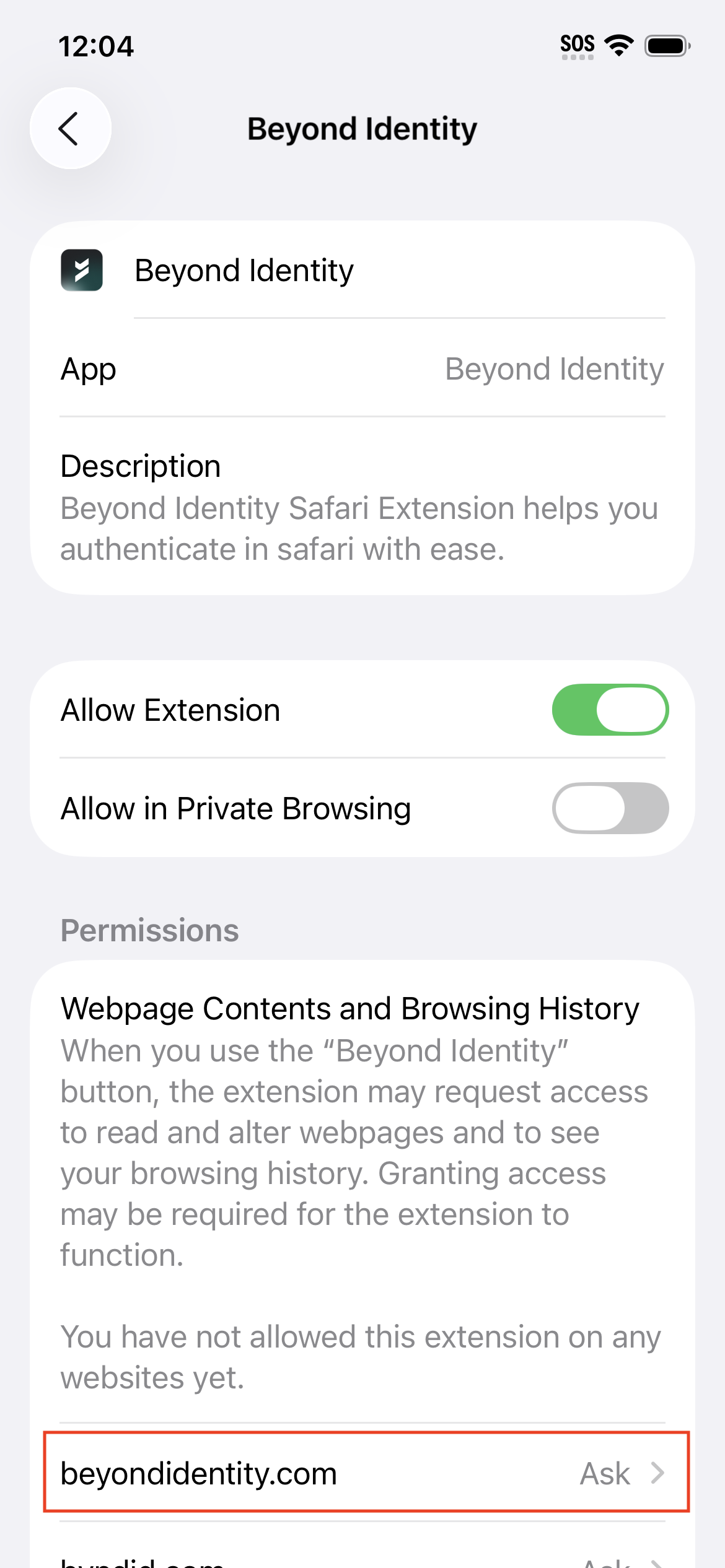
On the same screen, under Permissions, tap beyondidentity.com.
-
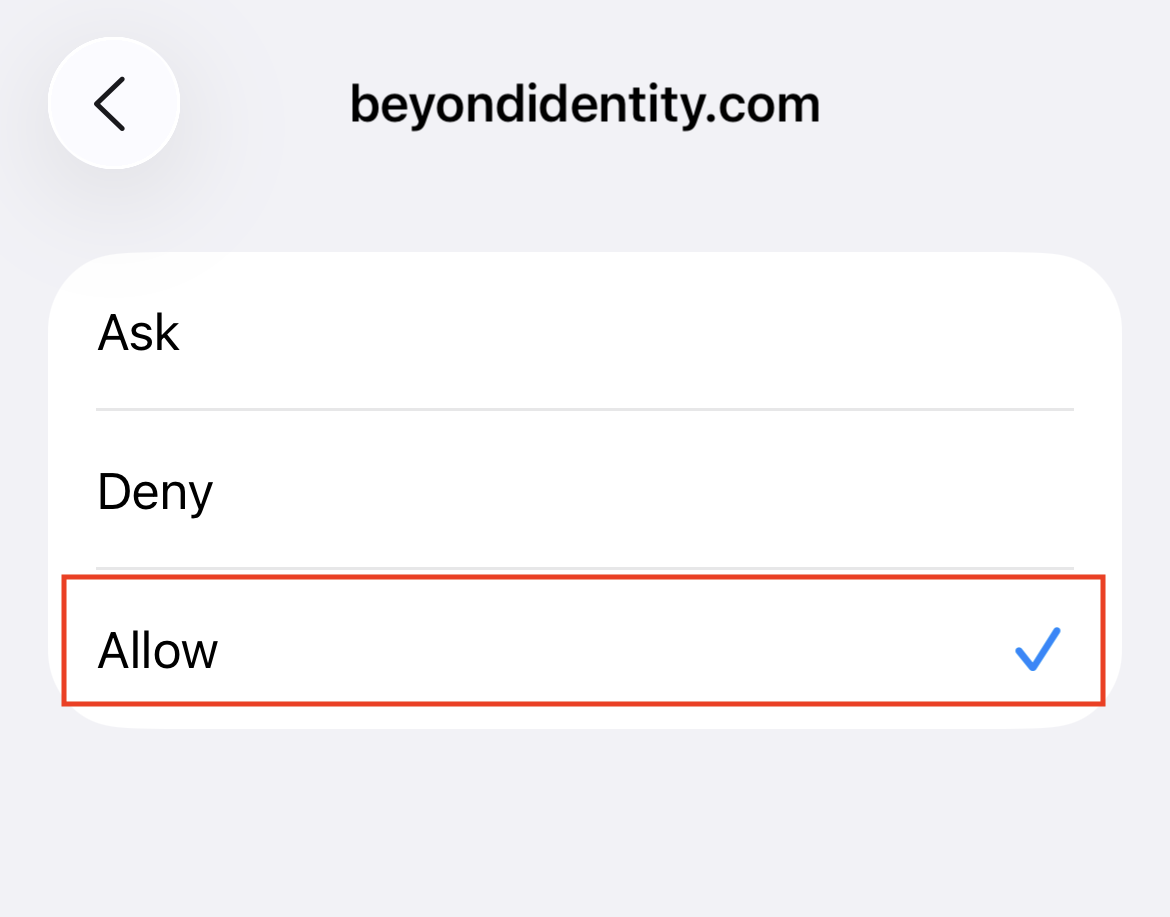
Tap Allow.
-
Repeat steps 7 and 8 for byndid.com.
Ask vs Allow (Permission Explanation)
-
Ask
Temporarily remembers your login preference for 24 hours. After that, you may receive repeated login prompts. -
Allow
Permanently streamlines authentication by reducing repeated prompts and enabling seamless access to Beyond Identity and SSO applications such as Okta or Entra ID (Azure).
Completion
You’re all done. You can now authenticate using your Beyond Identity passkey in the Safari browser when accessing protected applications.
Enable Beyond Identity Safari Extension on iOS Devices (iOS 18)
Follow the steps below to configure the Beyond Identity Safari Extension on devices running iOS 18.
iOS 18 Configuration Steps
-
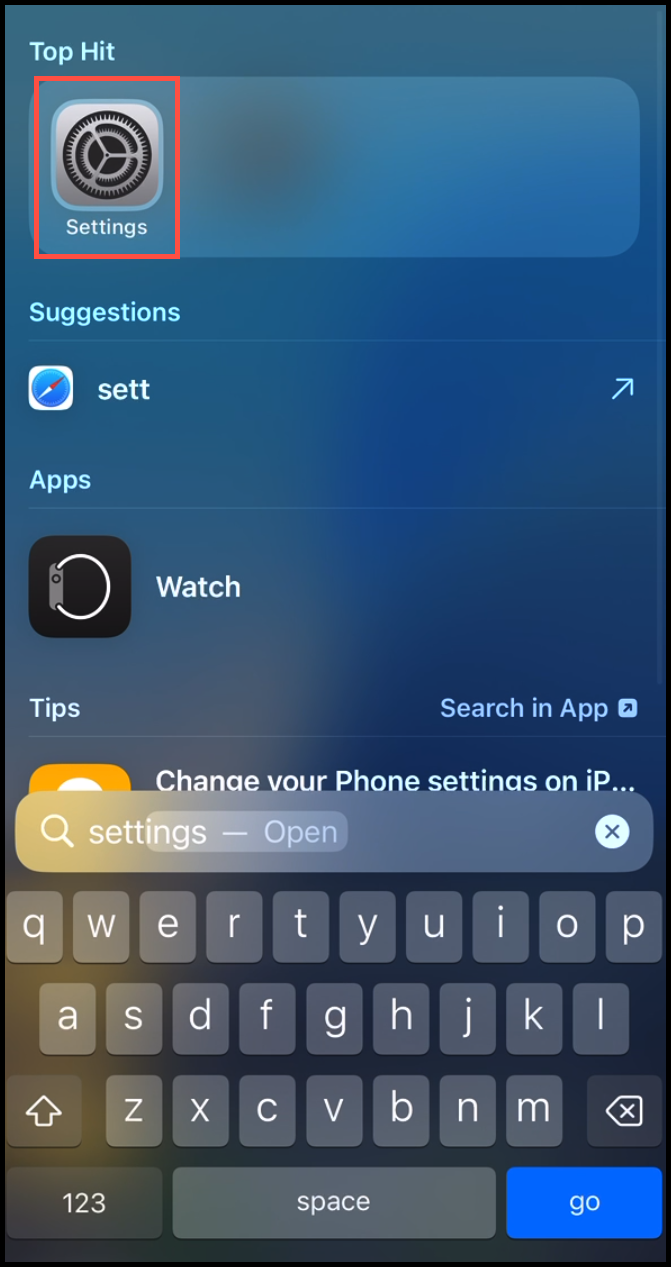
On your iOS device, locate and tap Settings.
-
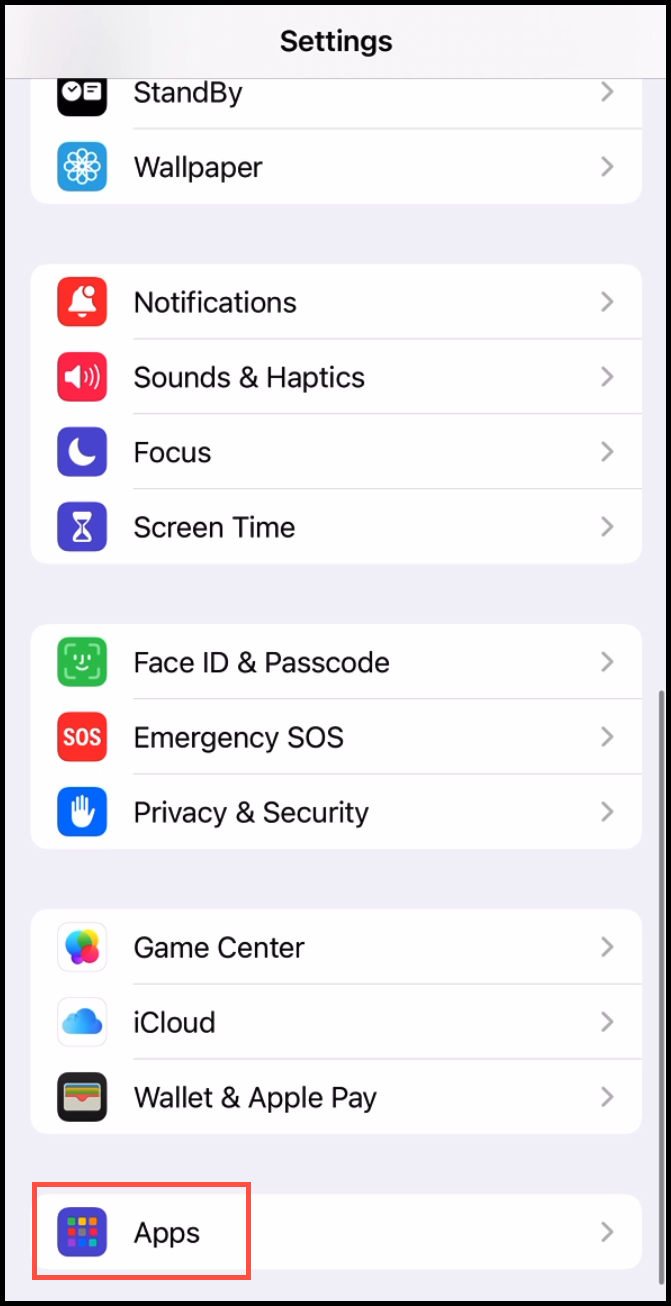
Scroll down and tap Apps.
-
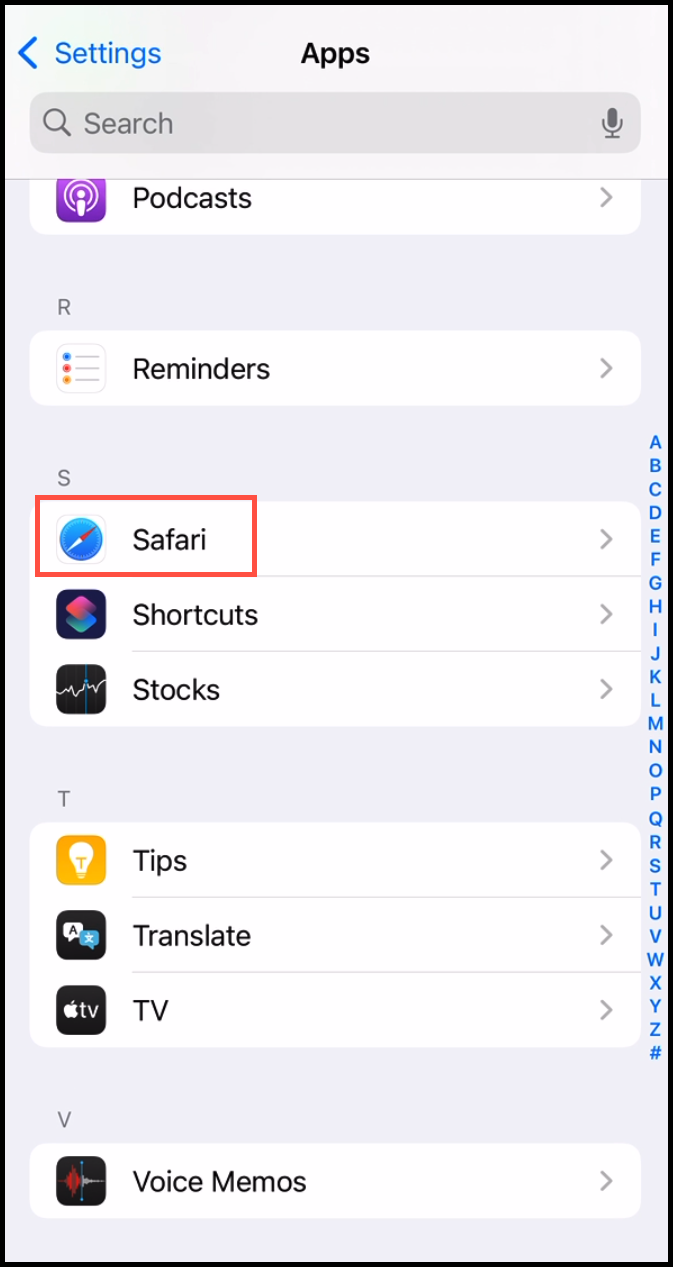
Tap Safari.
-
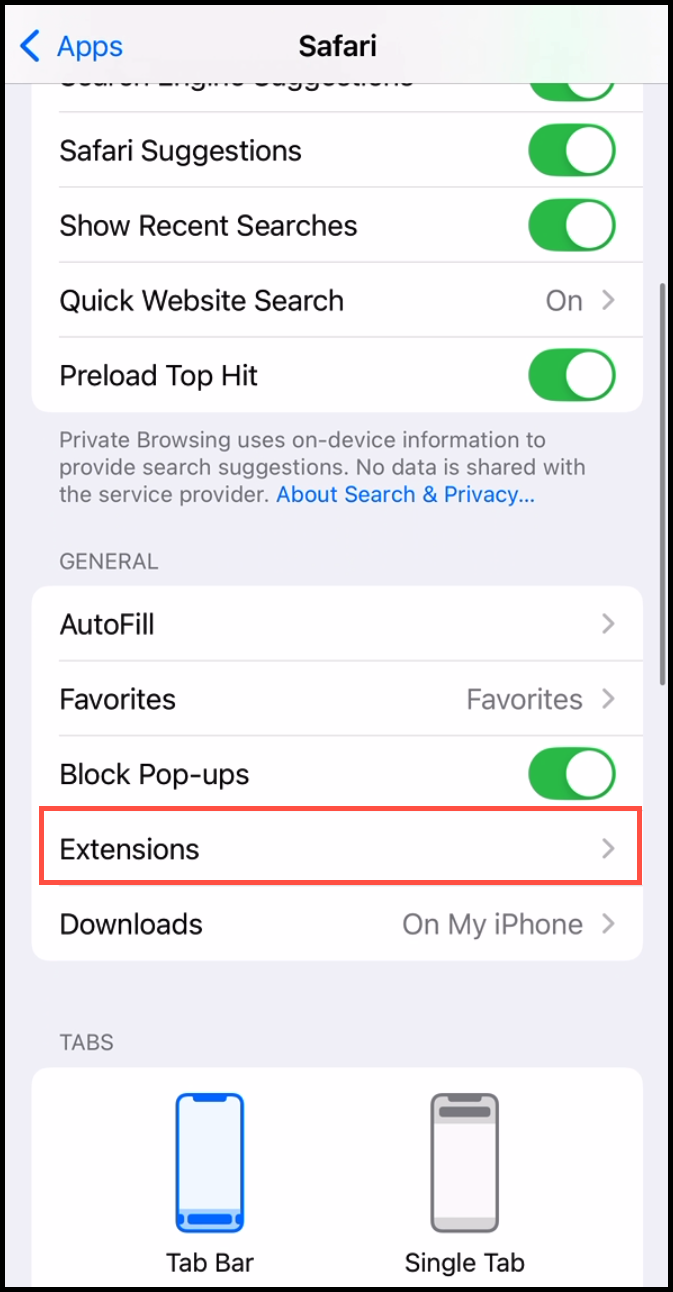
Tap Extensions.
-
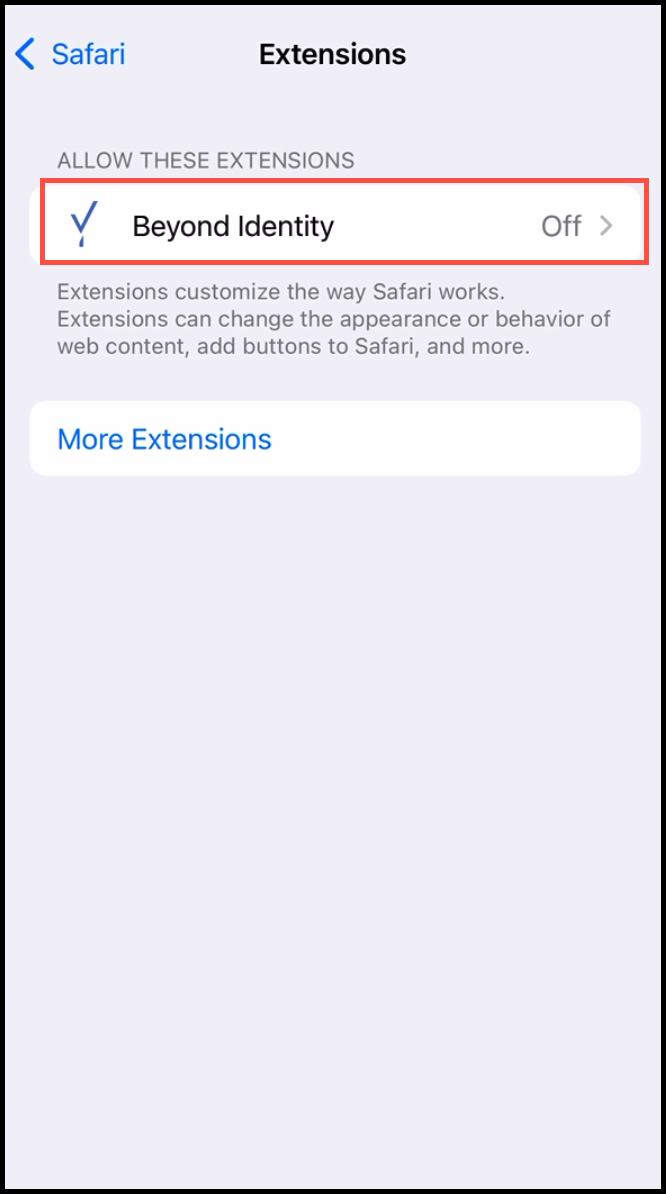
From the list of extensions, tap Beyond Identity.
-
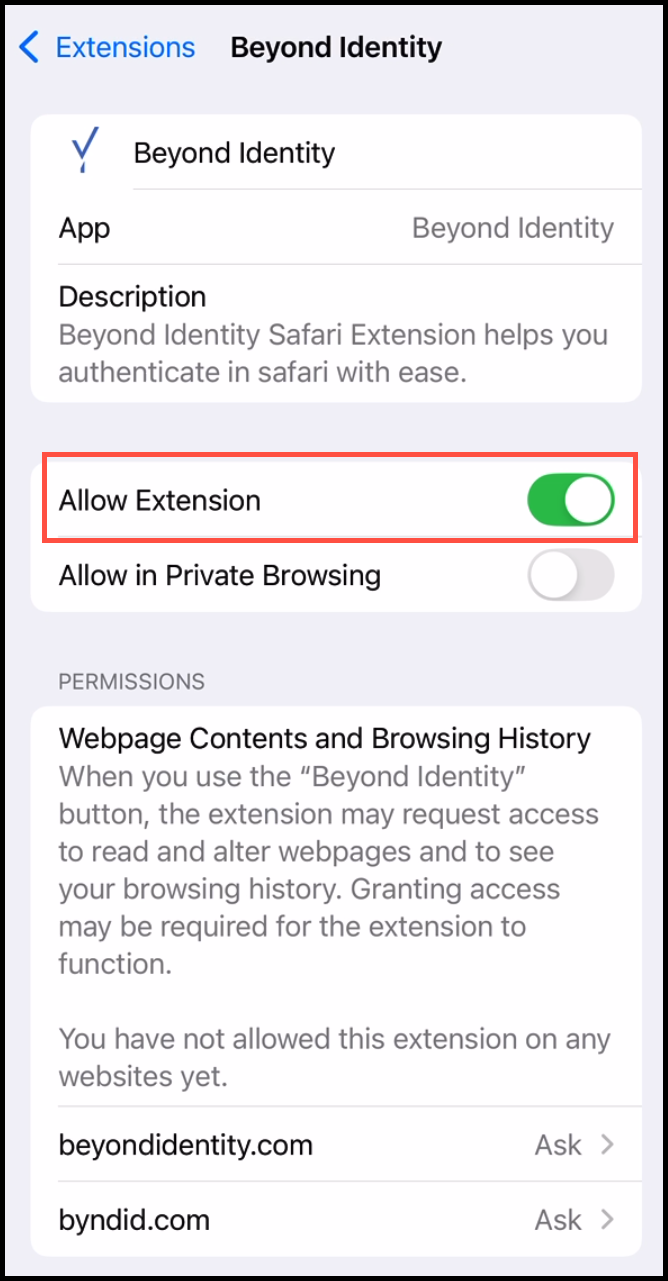
Toggle Allow Extension to ON.
-
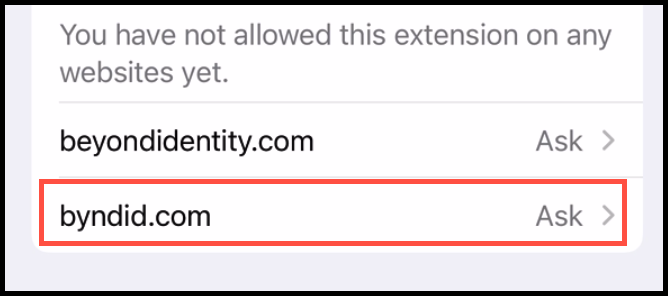
Under Permissions, tap byndid.com.
-
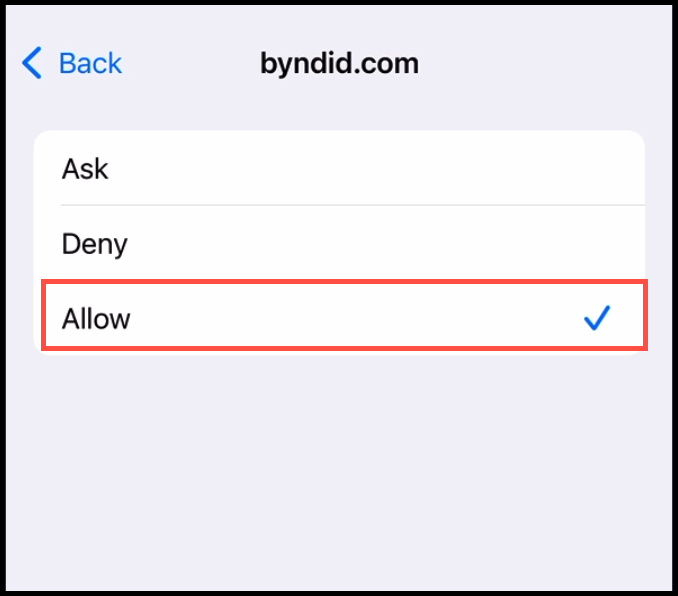
Tap Allow.
-
Repeat steps 7 and 8 for beyondidentity.com.
Completion
Your iOS device is now configured. Future logins will use an unprompted authentication flow for faster, seamless access to work applications.
Want to Test It?
Open Safari and sign in to:
- The Beyond Identity Admin Console, or
- Your SSO provider (for example, Okta or Entra ID)
Troubleshooting
If authentication does not work as expected:
- Confirm Safari is set as the default browser
- Ensure the Beyond Identity extension is turned ON
- Verify all Beyond Identity domains are set to Allow under Webpage Contents and Browsing History